How to Add a Custom Common Plants Source
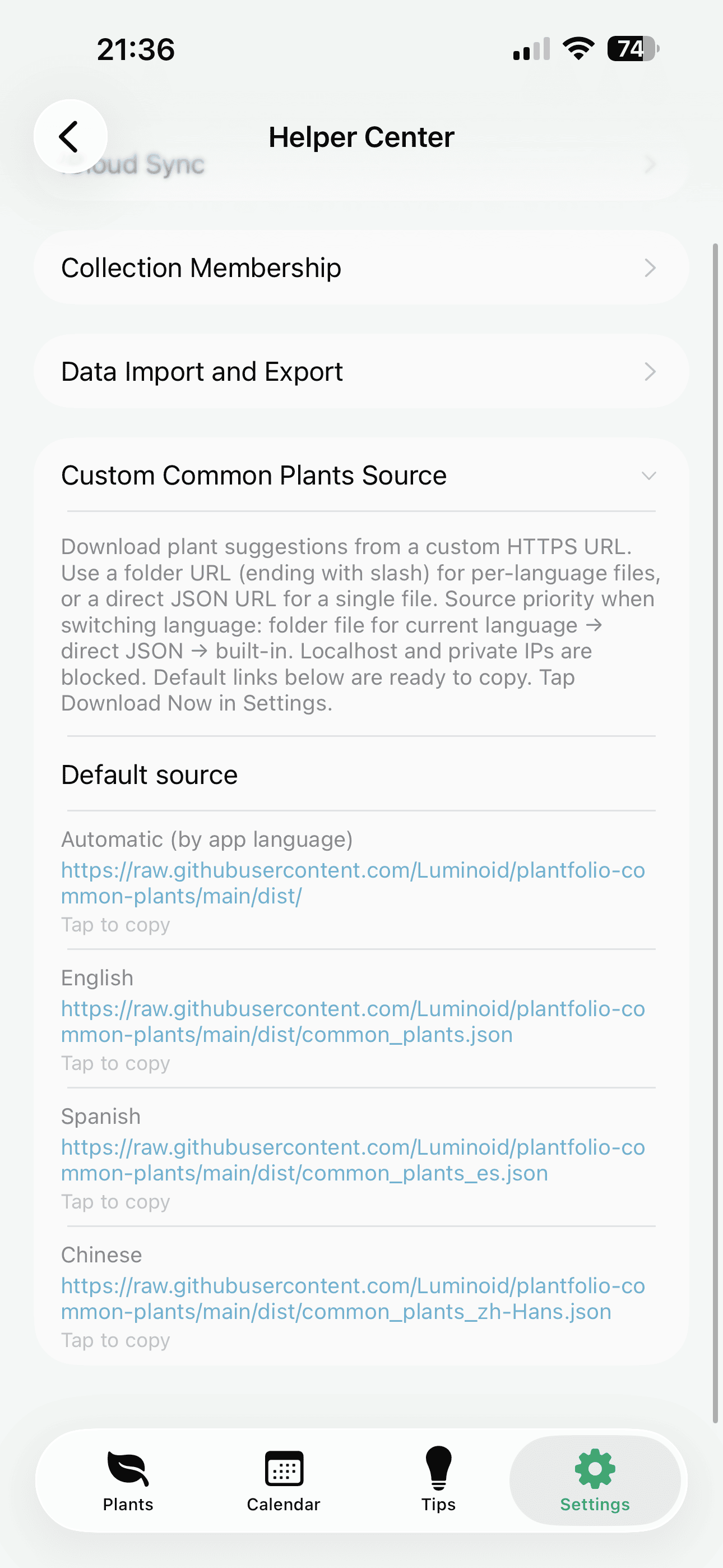
You can download plant suggestions from a custom HTTPS URL. Use a folder URL (ending with /) for per-language files, or a direct JSON URL for a single file. Source priority when switching language: folder file for current language → direct JSON → built-in. Localhost and private IPs are blocked for security. Default links are also listed below—tap to select and copy.
Default data source
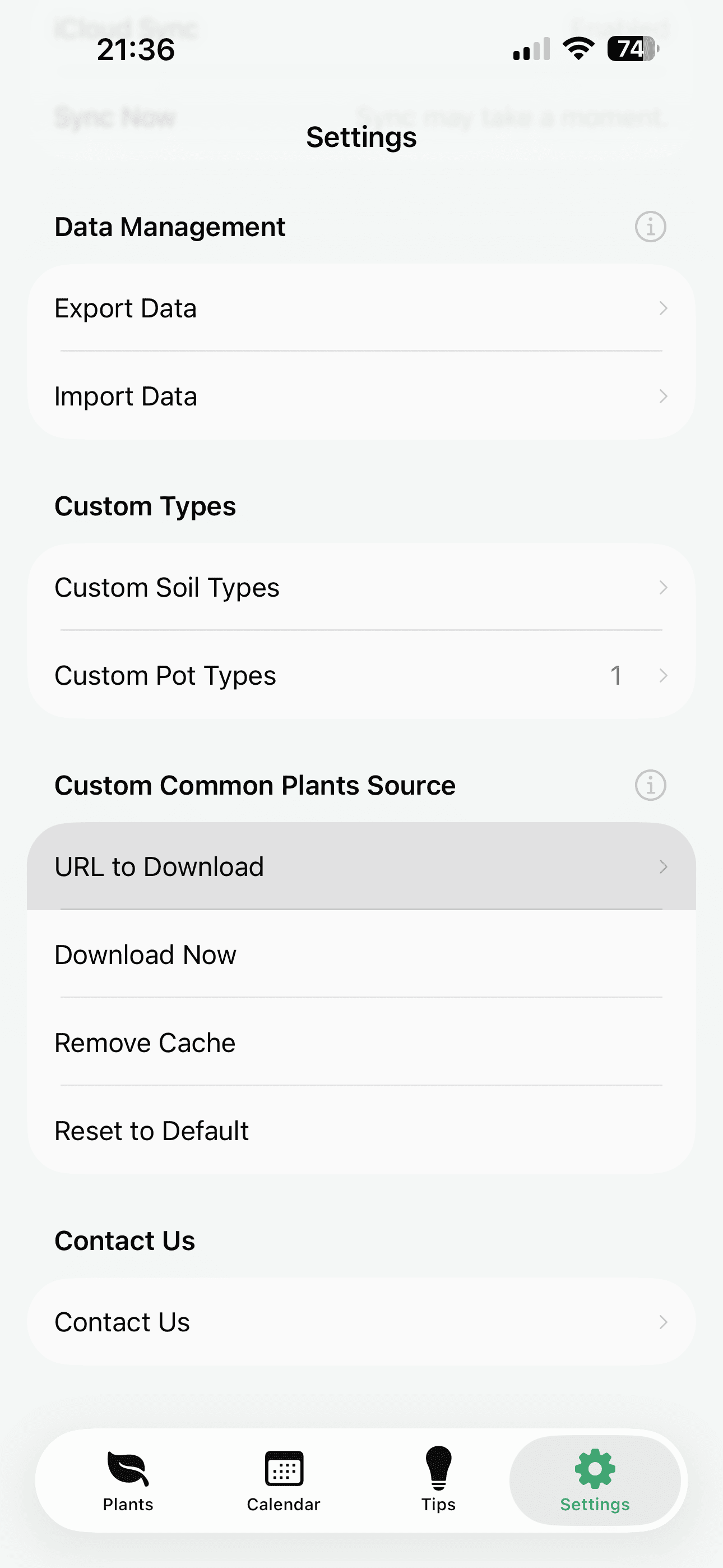
Step 1. Open Settings
Open Plantfolio and go to Settings. Scroll to the Custom Common Plants Source section.
Step 2. Choose a Source
Find your preferred custom plant source, or use our default ones. Tap the Instruction icon to see the default links and copy them.
Step 3. Enter the URL
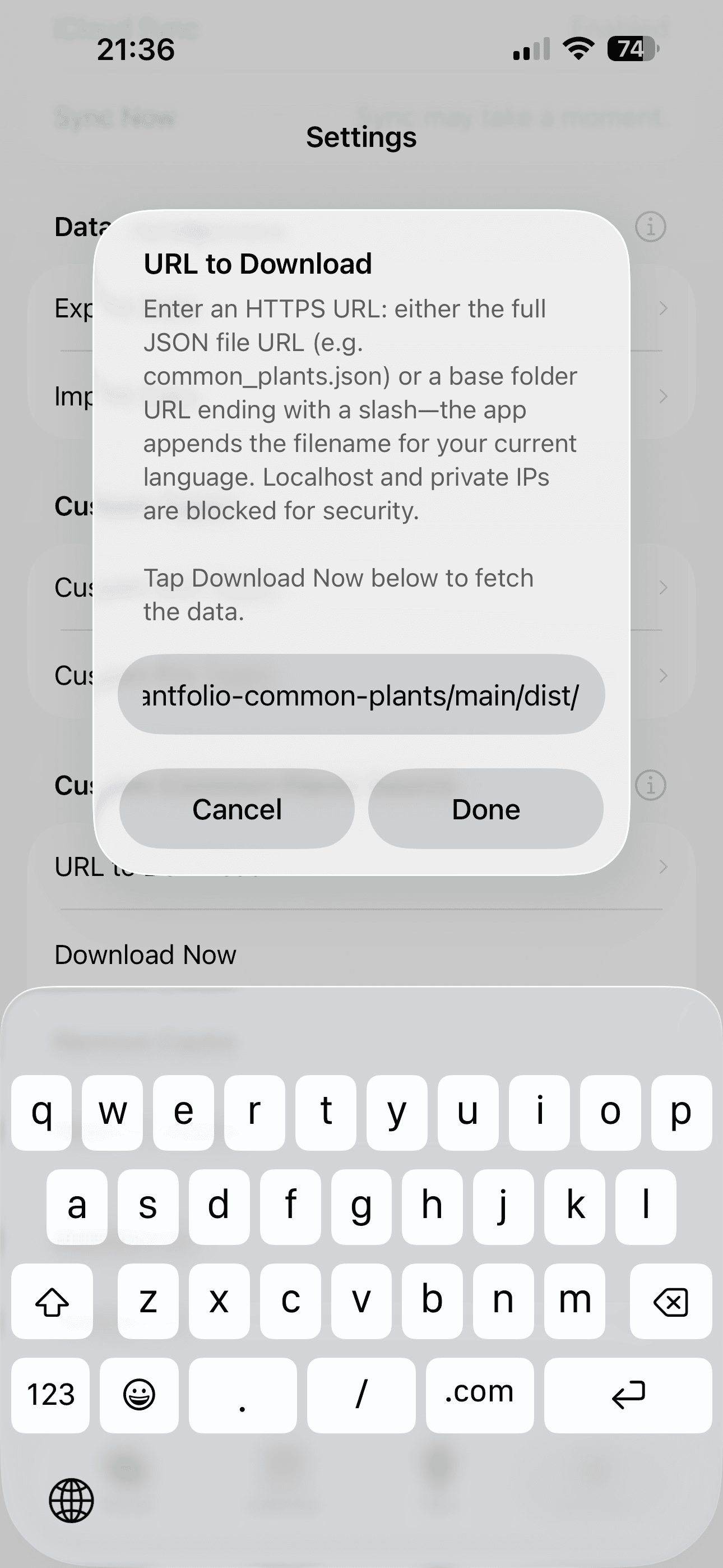
Tap the URL field and paste your source URL. You can use either:
- Folder URL (ending with
/) — for per-language JSON files (e.g.common_plants.json,common_plants_zh-Hans.json) - Direct JSON URL — for a single language file
Step 4. Download
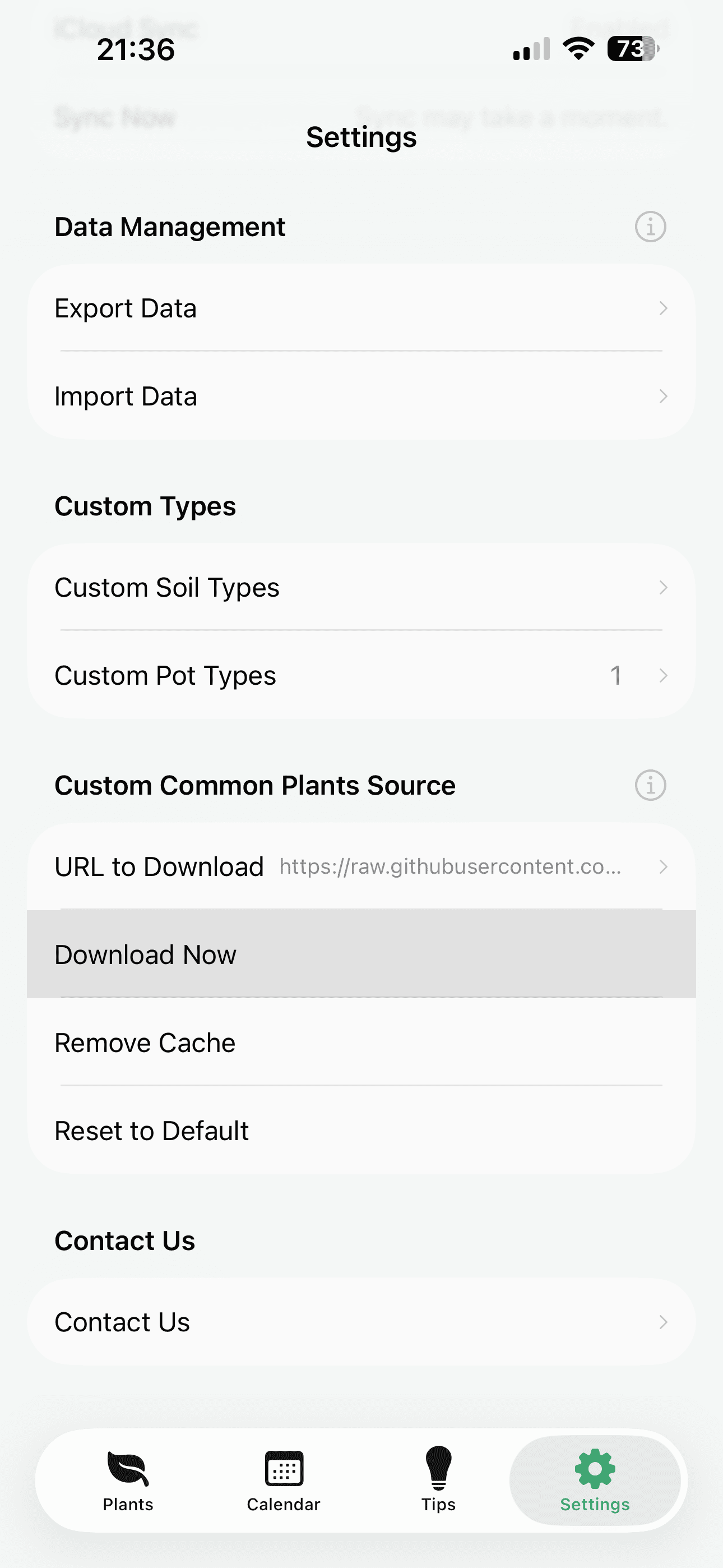
Tap Download Now to fetch and install the plant data. The app will validate the source before applying it.
Step 5. Use Your Plants
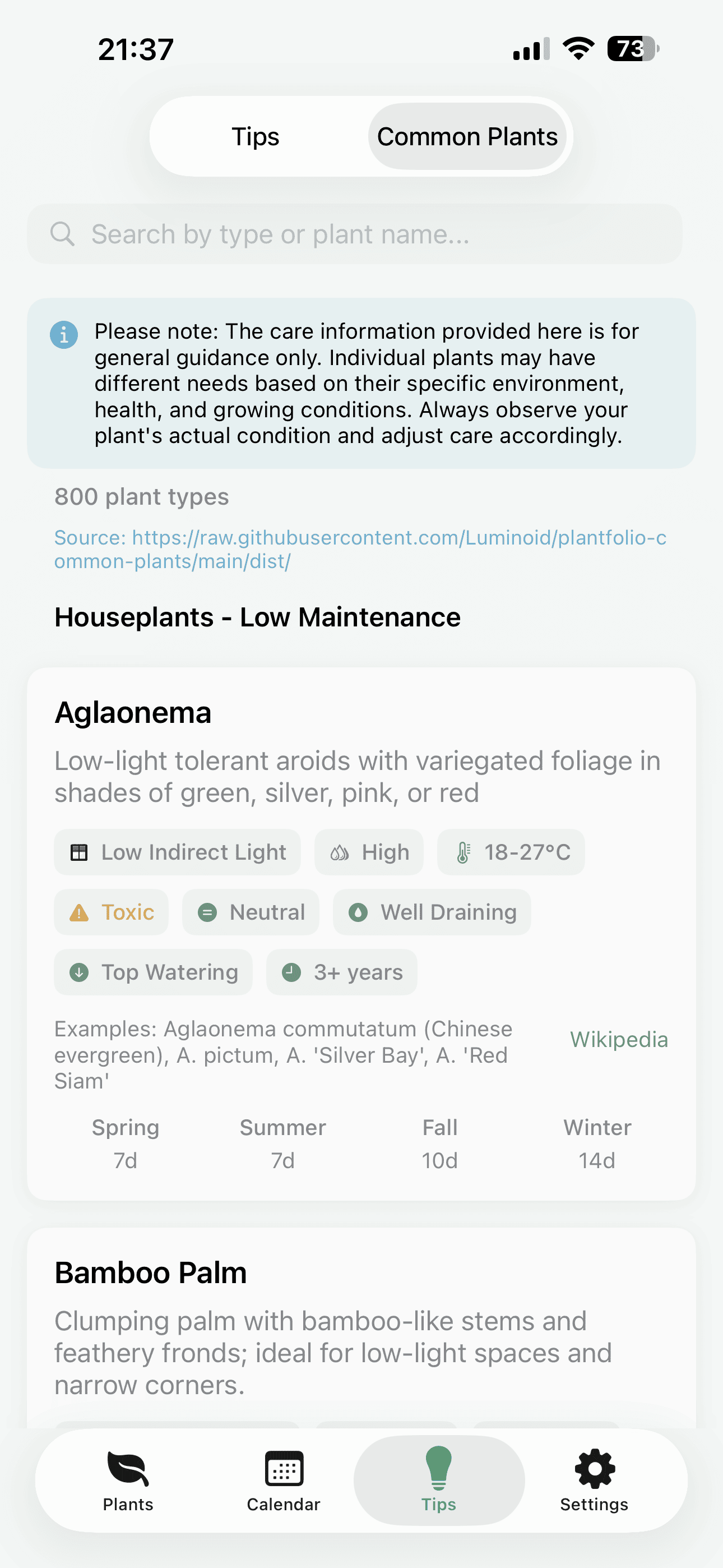
Your new common plants data is now available. Go to the Common Plants page (when adding or editing a plant) to find the updated suggestions.
Tip: Default links are ready to copy in the app. Tap the Instruction icon in Settings → Custom Common Plants Source to view them.